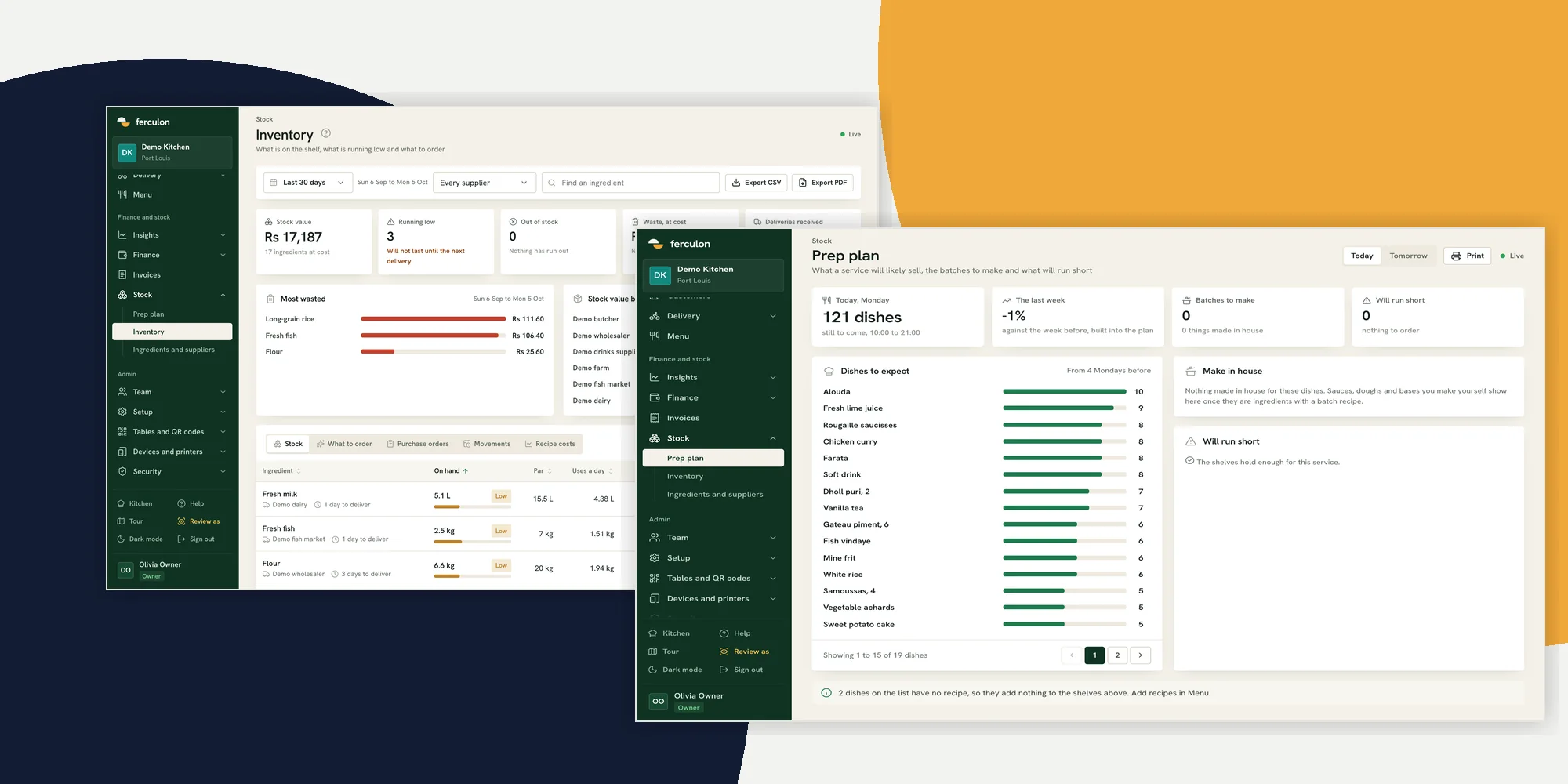
Restaurant inventory management means knowing what ingredients are on hand, what the next service is likely to use, what arrived or was wasted, and what to order before a shortage reaches the kitchen. In Ferculon’s back office, ingredients, recipes, stock movements, supplier orders and the prep plan connect those decisions. This guide follows the demo screens so a restaurant owner in Mauritius can test the same routine with their own team.
The screenshots are from a demo restaurant. Its names, quantities and figures illustrate the controls, not results achieved by a customer. Use your own supplier invoices, shelf count and recipes before trusting a suggested order. A stock screen can only reflect what the team has entered and what the recipe rules deduct.
| Moment | Action | Record to check |
|---|---|---|
| Before opening | Set up ingredients, units, suppliers and recipes | Each dish uses the correct ingredients and quantities |
| When goods arrive | Record the delivery or receive its purchase order | Received quantity and current supplier cost |
| During service | Send dishes to the kitchen and book waste | Recipe-based deductions and waste movements |
| At a set count time | Count what is physically on the shelf | Count adjustment and the reason for any difference |
| Before the next delivery | Review low stock, draft orders and prep | Supplier lead time, pack size and likely demand |
What restaurant inventory management must connect
A list of ingredient quantities is useful only when it belongs to the same operation as the menu and the service. If a dish uses an ingredient but has no recipe, selling that dish cannot give you a reliable theoretical deduction. If a delivery stays on paper, the screen may show a shortage even though the shelf is full. If waste is not booked, the opposite can happen. The aim is a traceable movement for each important change, then a physical count to test the record.
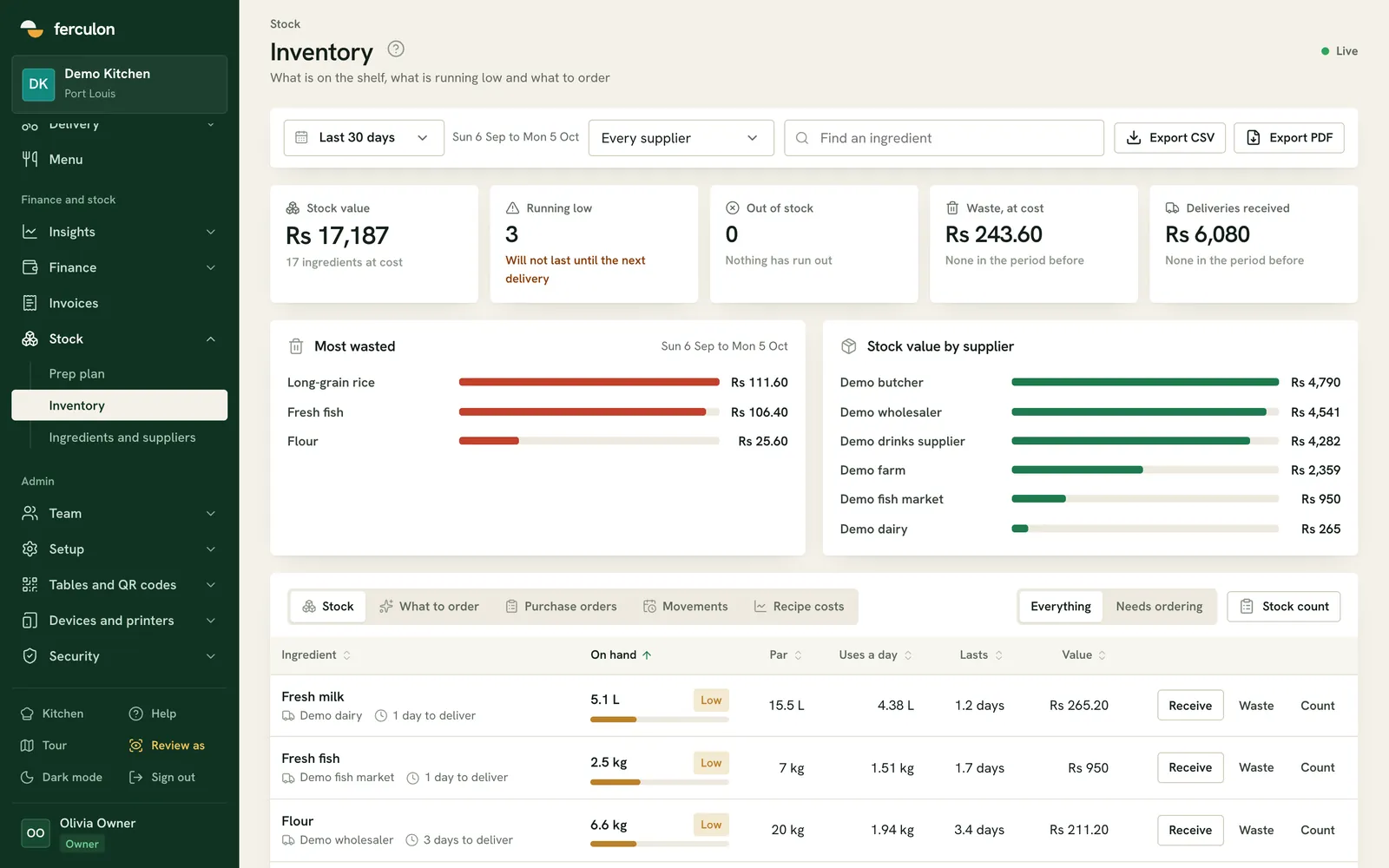
Ferculon’s Inventory screen separates Stock, What to order, Purchase orders, Movements and Recipe costs. Stock shows on hand, the level to keep, daily use and an estimate of how long it lasts. The top cards show value at cost, ingredients running low or out, waste at cost and deliveries received for the selected range. These are different measures: a high stock value does not prove the right ingredients will last through the next service.
Set up ingredients, suppliers and recipes before relying on a count
- In the office, open Ingredients and suppliers. Add each ingredient in the unit the kitchen actually measures. Record its supplier, normal pack size, delivery time and the level you want to keep on hand.
- Open each dish in Menu and check its recipe. Enter what one portion uses, in the ingredient’s unit. Ask the chef to confirm yields and portions rather than copying a supplier pack quantity into a one-portion recipe.
- Count the starting stock on the shelf and save a stock count. This gives the system a real starting point. Have a second person check ingredients that are expensive, fast moving or often wasted.
- Send a controlled test dish through the kitchen, then inspect its stock movement. Correct the recipe if the theoretical deduction does not match what the kitchen actually uses.
The setup matters more than a colourful dashboard. The office code deducts recipe ingredients when dishes go to the kitchen; deliveries, waste and counts are recorded separately. Ferculon can suggest a recipe from ingredients already on your stock list, but a person must check the suggestion before saving it. The POS setup guide covers the wider room, menu and ordering rules that should be ready before the first shift.
Count the stock that is actually on the shelf
Open Inventory, then Stock. Use the supplier filter or ingredient search to work through a small area at a time. The row shows on hand, the level to keep, estimated daily use, days left and the supplier delivery time. A low or out label tells you where to look first, but the physical shelf decides whether the recorded quantity is right. Choose Count on one row to enter its actual quantity, or Stock count to count the full list in one sheet.
Set a consistent counting point, such as before prep or after closing, and tell the team which incoming deliveries and unfinished batches belong in that count. Count in the unit shown on the screen, then save the actual amount, not the amount the system expected. If a difference appears, inspect movements before changing the recipe or blaming a member of staff. Unrecorded waste, a pack entered as a single unit, and a delivery booked twice can each create a misleading variance.
The mobile app exposes Count to a person with stock-count permission, and Receive and Waste to a person with stock-receive permission. That makes it possible to record a change near the shelf. Access still needs to match your own roles and checking procedure. The browser office provides the broader stock, supplier order and recipe cost views.
Book deliveries and waste when they happen
For a loose delivery, choose Receive on the ingredient row. Enter the quantity in the displayed unit, check the supplier pack cost if it changed, and add an invoice reference in the note. If you created a purchase order in Ferculon, open Purchase orders and receive it there so the order and stock movement stay together. Compare the delivered amount with the supplier document and the physical goods before confirming; a purchase order is a request, not evidence that every item arrived.
For spoiled, dropped or expired ingredients, choose Waste, enter the quantity and add a useful reason. The Movements tab lists deliveries, waste and counts, while the date-range cards show waste at cost and deliveries received. Look at both the ingredient and the movement trail before assuming a change in cost is a change in buying price. The food cost guide explains how recipe cost, actual usage and waste answer different margin questions.
Turn low stock into a supplier order you have checked
The What to order tab groups draft quantities by supplier. It uses recent sales and delivery times, and shows why an ingredient appears, what is on hand, the suggested quantity and estimated cost. Change any quantity before you create an order. Check the pack size and delivery day, then compare the draft with bookings, specials and any event that your recent sales cannot represent. A supplier message can be copied, while Purchase orders keeps the recorded order and receiving route.
This is where the local operating detail matters. A supplier that delivers to your Mauritius restaurant only on certain days may leave a gap even when the screen says you have stock today. Check the next service and the supplier’s actual confirmed delivery before committing to a menu item. If an ingredient really is out, tell the kitchen and take the affected dish off the available menu through your normal service process. The kitchen display guide helps test how a sold-out dish and the order hand-off appear to the team.
Use the prep plan before the next service
Open the prep plan in Ferculon Intelligence before the kitchen starts. It estimates dishes to expect from comparable weekday sales, shows batches to make in house, and flags ingredients likely to run short before the next delivery. Use it as a checklist beside reservations, local events, weather and what your chef already knows. The plan is an estimate from your own records, so a new menu or an unusual event can make it less representative.
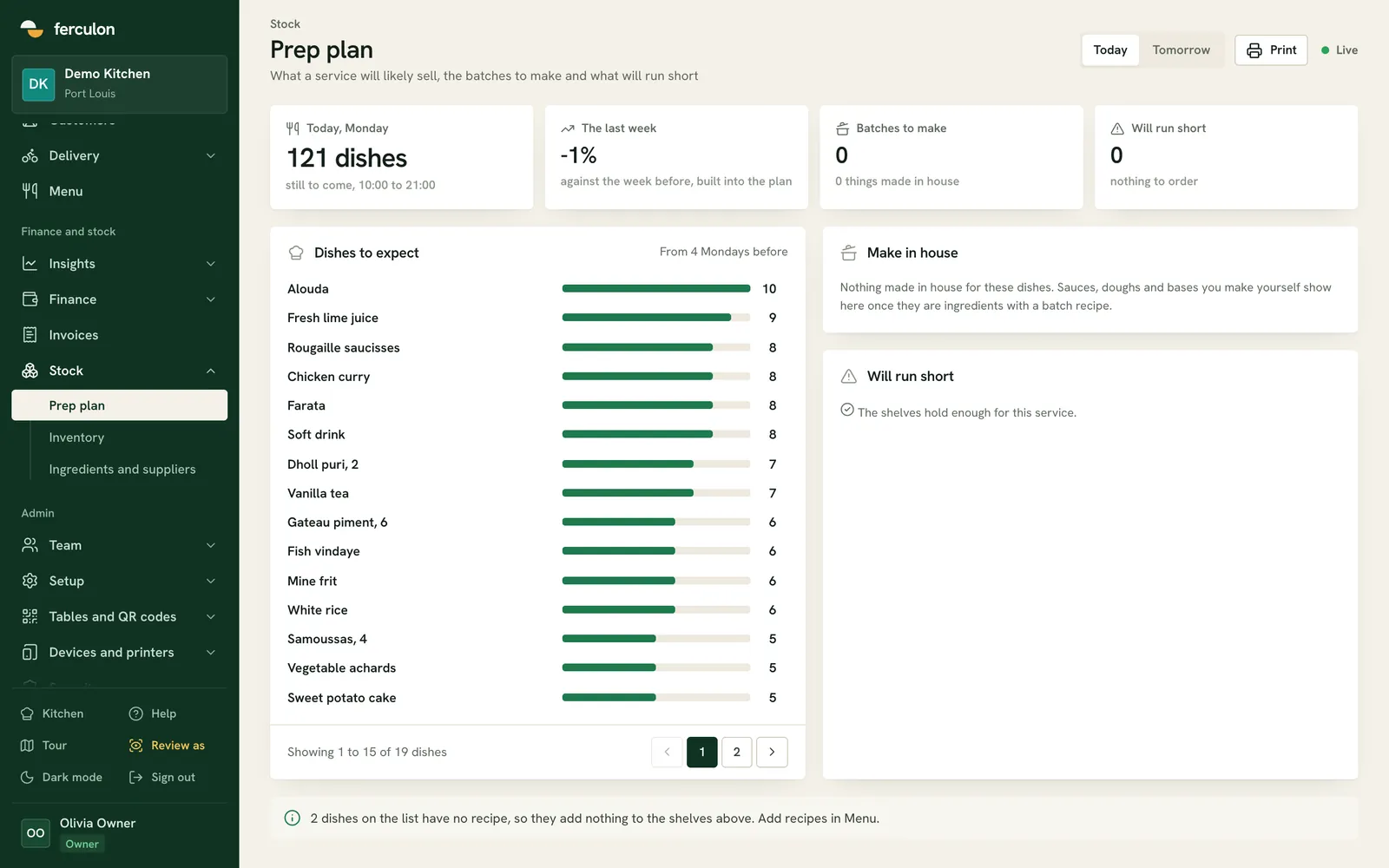
Tell the head chef which shortages are confirmed by a shelf count and which are only predicted. Check recipe quantities before turning a predicted dish total into a prep batch. If the plan says an ingredient will run short, the response may be to order it, reduce prep, adjust the menu or confirm a delivery. The right choice depends on what the team can serve safely and what the supplier can actually bring.
Check movements and recipe cost without guessing
At the end of a shift, review Movements for unexpected delivery, waste or count entries. Keep the note and the supplier document with the person who made the entry. Look at Recipe costs when a supplier price changes or a portion changes, because the dish’s estimated cost depends on both. A cost number without a checked recipe is just a tidy-looking guess. For broader decisions, compare it with the menu and margin view rather than using stock value alone.
A practical weekly review has three questions: which ingredients repeatedly need an emergency order, where does physical count differ from the record, and what waste was recorded? Answer those using the movement history, supplier order and count, then change the underlying recipe, par level or working method. Keep the review small enough that the manager and chef will actually do it, especially across a busy weekend.
What inventory software cannot verify for your restaurant
Ferculon connects orders, recipes, stock and prep, but it cannot see a shelf or verify the quality of delivered food. A person must count, inspect the goods, record waste, approve supplier quantities and decide whether a forecast fits the coming service. It also does not transmit fiscal invoices to the MRA Electronic Billing System. This operational guide is not tax or legal advice.
If you are comparing restaurant inventory software or the best restaurant management system for your restaurant, ask the supplier to demonstrate a full chain with your own ingredients: set up a recipe, send one dish to the kitchen, book a delivery, count the shelf and inspect the resulting movements. See pricing for a quote, then arrange a Ferculon demonstration with your chef and manager.
Questions people ask
How do restaurants manage inventory during service?
Start with ingredients, units, suppliers and recipes, then record deliveries, waste and physical counts as they happen. In Ferculon, a dish sent to the kitchen deducts ingredients from its recipe. The manager still checks the movement history against the shelf.
How do I do a stock count in Ferculon?
Open Inventory and use Count on one ingredient or Stock count for the full list. Enter the actual quantity on the shelf in the displayed unit and save the difference. Check deliveries and waste movements if the recorded amount differs.
Does Ferculon suggest what to order from suppliers?
Yes. What to order groups draft quantities by supplier using recent sales and delivery times. A manager can change quantities before creating an order and should confirm the pack size, delivery day and physical stock first.
Can the prep plan replace a chef’s decision?
No. It estimates dishes and batches from the restaurant’s own sales and flags likely shortages. The chef must compare that estimate with bookings, the current shelf count and any unusual service before deciding what to prepare.
Does Ferculon transmit fiscal invoices to the MRA?
No. Ferculon does not transmit fiscal invoices to the MRA Electronic Billing System. This guide covers operational stock management and is not tax or legal advice.