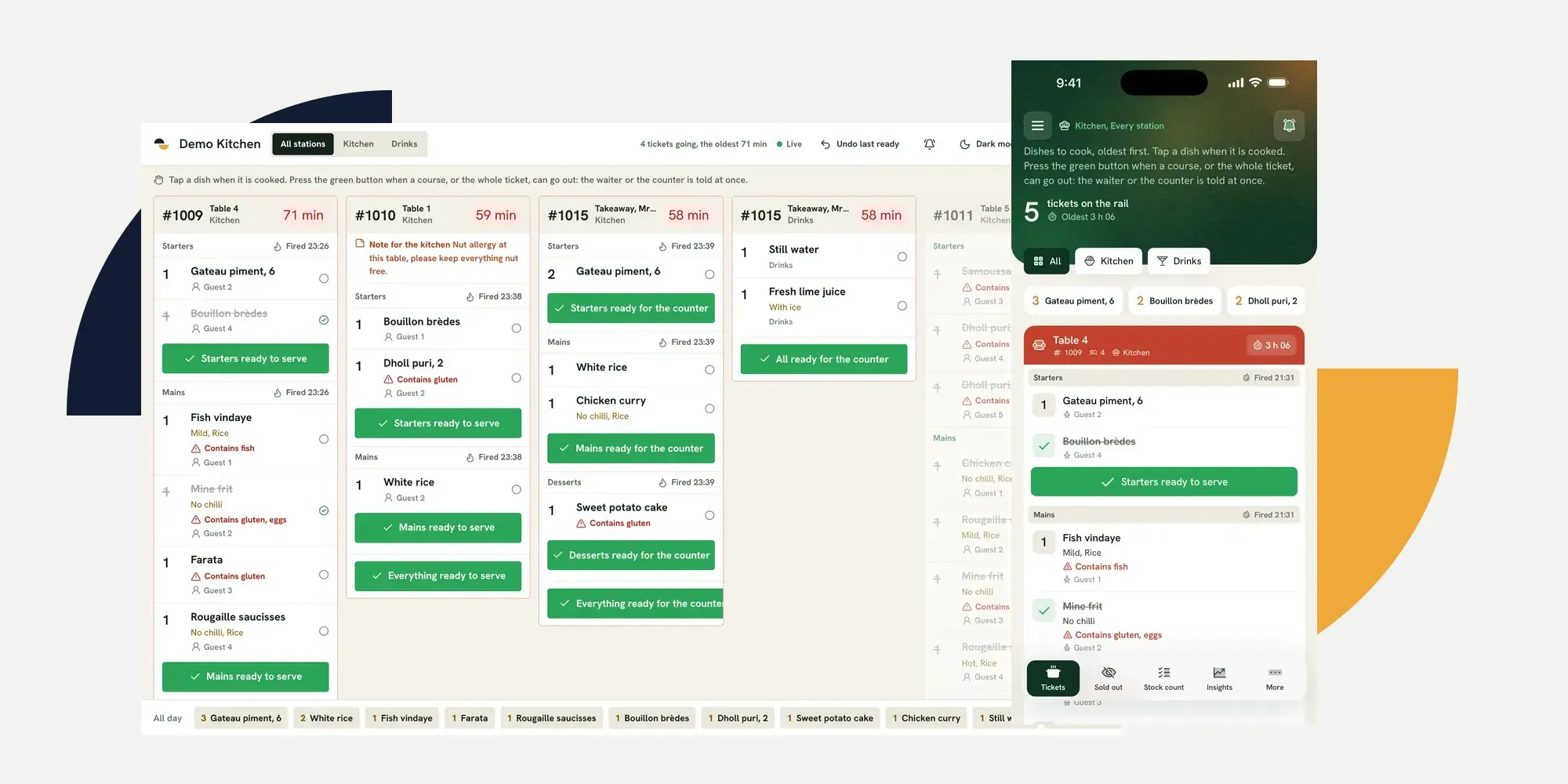
A kitchen display system is a screen that turns incoming orders into tickets the cooks can work through and marks food ready for service. For a restaurant in Mauritius, the useful question is not whether the screen looks clear when empty. It is whether orders from the tables, the counter and the online page stay together when the kitchen is busy, then reach the waiter or counter at the right time.
That is the loop to test. Ferculon’s kitchen display is one concrete example throughout this guide. Its tickets show courses, stations, elapsed time, guest notes and allergens. The same questions apply when you examine any system. For a broader definition of kitchen display software, Toast’s platform documentation describes tickets and how staff work them on a screen.
What a kitchen display system must show
A ticket needs enough context to cook the right food and send it to the right place. An order number alone is no help when the pass is holding a starter for a seated table and a takeaway for collection. Check that the screen keeps these details visible without opening another view.
| At this point | The kitchen needs to see | The next person needs to know |
|---|---|---|
| Order arrives | Table or takeaway, dishes, quantities and the station for each dish | The floor or counter can see that the order was sent |
| Course is being cooked | Course, guest, changes, allergens, notes and time waiting | The waiter can see that food is still with the kitchen |
| Course is ready | Which course is complete and what remains on the ticket | The waiter for a table, or the counter for a takeaway, receives the ready message |
| Dish is sold out | The dish can be switched off at the source | The guest menu stops offering the dish |
In Ferculon, the kitchen ticket puts the guest note and any allergen beside the dish line, not in a separate booking screen. The all-day count shows the dishes still to make across tickets. These are small details until two stations both need to know whether the last portion is already spoken for.
How orders reach the right station and course
A kitchen display should take orders from every channel the restaurant actually uses. A waiter may send a table order from the floor. A guest may order from the table QR code. The counter may enter a collection order, while another comes from the restaurant’s own online page. If one channel lands in a separate inbox, staff must carry or re-enter it before the cooks can act.
In Ferculon, those orders appear on the same kitchen display. Dishes are assigned to stations such as kitchen or drinks, and the view can show one station or all of them. The ticket keeps starters, mains and desserts as courses. A cook can see what has been fired now and what remains held for later; that distinction matters when a table wants its mains after the starters have left the pass.
- Send an ordinary table order. Put a starter, a main and a drink on the same bill. Check which station receives each item and whether the courses stay labelled.
- Add a changed dish. Add a guest note and an allergen, then confirm that both appear on the dish line the cook actually reads.
- Send another channel. Add a QR or collection order while the first ticket remains open. Confirm that it joins the same work queue with its order type clear.
- Hold and fire a course. Check that the kitchen can tell which food to cook now and which course is still waiting for service.
A single screen does not mean a single undifferentiated queue. The bar should not have to scroll past mains to find a drink. Equally, the pass needs an all-stations view when it coordinates a table. Ask to switch between those views during the same test order, without creating another ticket.
What happens when a cook marks a course ready
The ready button is where a kitchen screen becomes a service tool. Marking a single dish cooked is different from telling the floor that the whole course can leave. Ferculon lets the cook mark dishes, then mark a course ready. A table course tells its waiter it is ready to serve; a takeaway tells the counter it is ready for collection. An “all ready” action can complete the ticket, and “undo last ready” reverses a mistaken tap.
Test the recipient, not just the green button. The waiter responsible for the table should see the table number and the course. A counter order should go to the counter, where somebody can match it to the customer. A blanket message to every device trains everyone to ignore the alert. The floor and waiter view should show the same order state as the kitchen, so staff do not need to ask the cook whether a course has already gone out.
Then undo a ready tap and check what the waiter sees. During service, accidental taps happen. The correction needs to be as visible as the original message, and the kitchen ticket should still show which dishes are incomplete. A demo that only tests the happy path leaves that question unanswered.
How to set timers and work through a rush
A timer is a prompt to look at a ticket, not proof that the kitchen is slow. Ferculon’s kitchen view is green for the first 10 minutes, yellow until 15 and red after that, with limits that can be changed per station. The bar can have a different warning point from the grill. During a demo, change one station’s limits and check that the other station keeps its own.
Watch how the board orders several tickets. In Ferculon, older work remains visible while new tickets arrive, and the all-day count shows the dishes outstanding. A manager at the pass should be able to spot a ticket that needs attention without losing the course, table and notes. If the screen uses colour alone, ask how somebody can read urgency when colour is hard to distinguish or the display is viewed at an angle.
Use your own menu for the test. A restaurant serving grilled fish, drinks and takeaway snacks will learn more from a mixed rush than from a supplier’s five identical sample orders. Do not accept a claimed time saving without a measurement from your own service. The useful result is whether your staff can see what is waiting, what is ready and who must move next.
Where the kitchen screen stops
A screen can display an allergen, but it cannot check the ingredients, the pan or cross-contact for the cook. Make the kitchen’s existing food safety checks part of the process. Guest notes and dietary labels must be read by a person, and unclear requests need a question back to the guest before cooking.
The screen also needs a fallback. Ferculon supports kitchen tickets on Wi-Fi or Bluetooth printers by station, but the restaurant still has to decide what staff will do if a screen, printer, network or power supply fails. Run that drill with the devices and connection you will use in Mauritius. Ask the supplier to show what the screen and each device actually do during that drill.
How to test a kitchen display system in a demo
Bring the real people who work the loop: a waiter, someone from the pass, a cook and the person at the counter. Give them a short service with a table, a QR order, a collection order and a sold-out dish. Ask each person to say what they can see before anybody explains the software.
- Before sending: Set a kitchen station and a drinks station, a starter and a main, a guest note and an allergen. Check the course and station assignment.
- While cooking: Send the same kinds of orders your restaurant accepts, then filter one station and return to the all-stations view. Check the waiting time and all-day count.
- At the pass: Mark one dish cooked, then the course ready. Ask the waiter and counter which one received a message and what it said. Undo a mistaken ready tap.
- After a sell-out: Switch off one dish and check that the guest-facing menu stops offering it before another guest orders.
- When something fails: Disconnect the test screen or printer and follow the restaurant’s fallback procedure. Write down what the team can still see and what must be handled by hand.
If you want to run that sequence on Ferculon’s kitchen screen with your own dishes and stations, arrange a demonstration. Ask the supplier to show the full loop rather than a still image of the board.
Questions people ask
What is a kitchen display system in a restaurant?
It is a screen that turns incoming orders into kitchen tickets and lets cooks mark food ready. Check that it shows the order type, course, station, notes and waiting time, then tells the right waiter or counter when food can leave.
Can a kitchen display send drinks to the bar and food to the kitchen?
A system with station routing can do that. In Ferculon, each dish belongs to a station, and the screen can show only that station or all stations together.
Do QR and online orders appear on the same kitchen screen?
They do in Ferculon. Table, QR, counter and orders from the restaurant’s own online page reach the same kitchen display, with the order type kept visible.
What should happen when the kitchen marks a course ready?
The person who can move the food should be told. Ferculon notifies the waiter for a table course and the counter for a takeaway; an accidental ready tap can be undone.
Can kitchen tickets be printed instead of shown on a screen?
Ferculon supports kitchen tickets on Wi-Fi or Bluetooth printers by station. Test the printer and the restaurant’s fallback procedure with the devices that will be used in service.