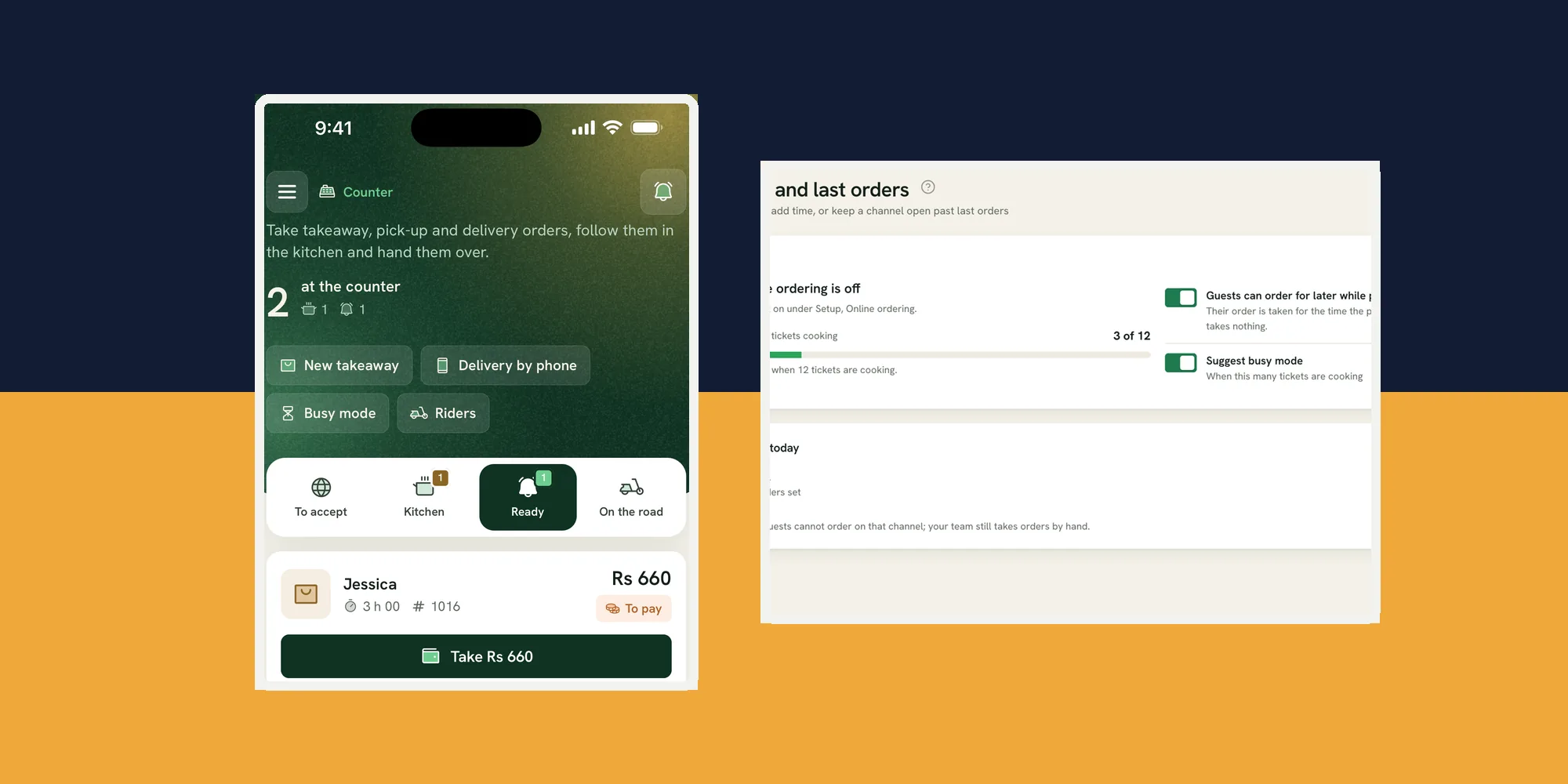
Restaurant delivery management is the work of deciding where you deliver, accepting an order, making it, assigning one of your own riders, tracking the hand-off and settling the money. For a restaurant in Mauritius, that chain has to be clear at the counter during a busy service. Ferculon’s online ordering and delivery connects orders from your own restaurant page to the counter and kitchen. This guide shows the delivery-specific checks to run in the demo screens.
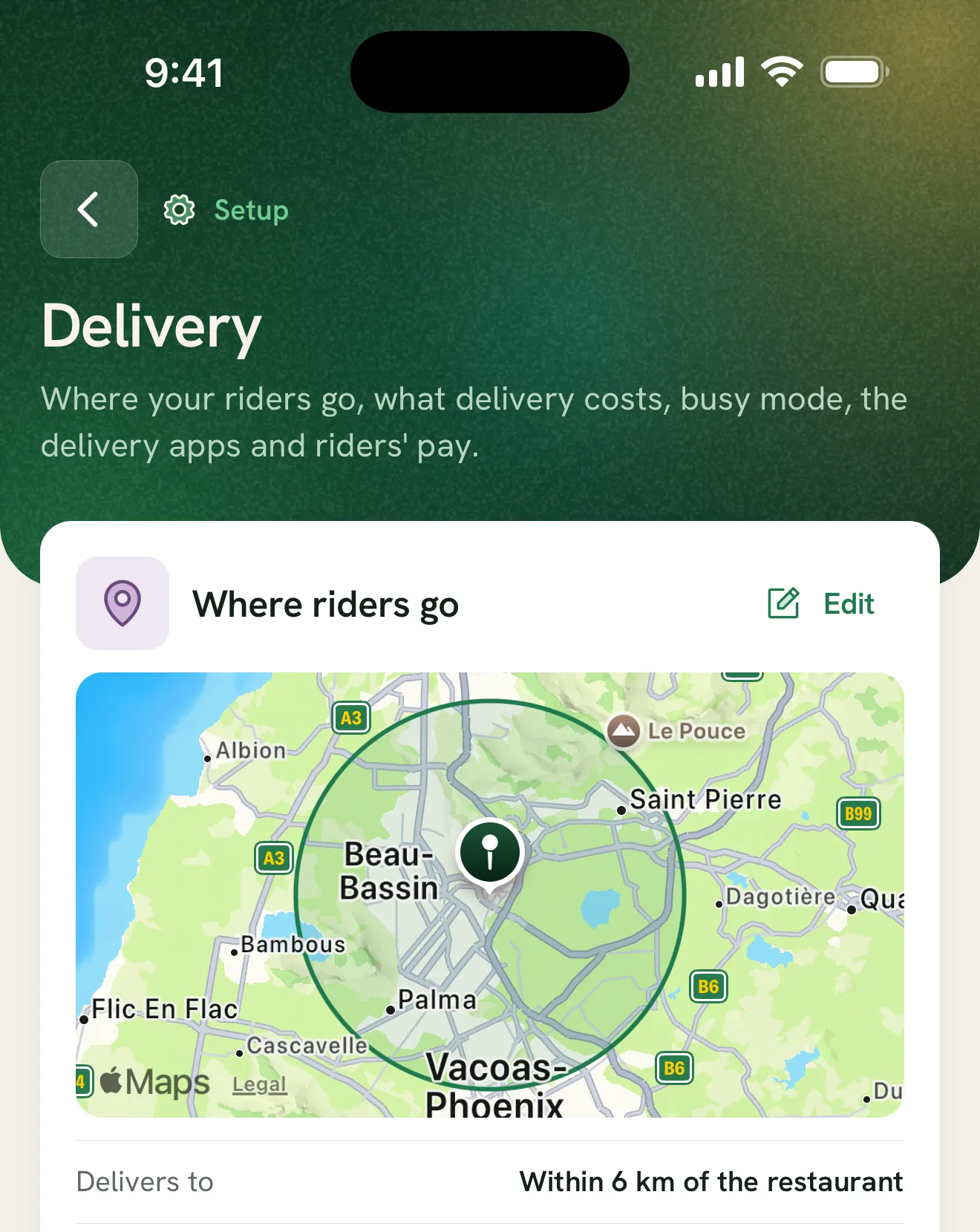
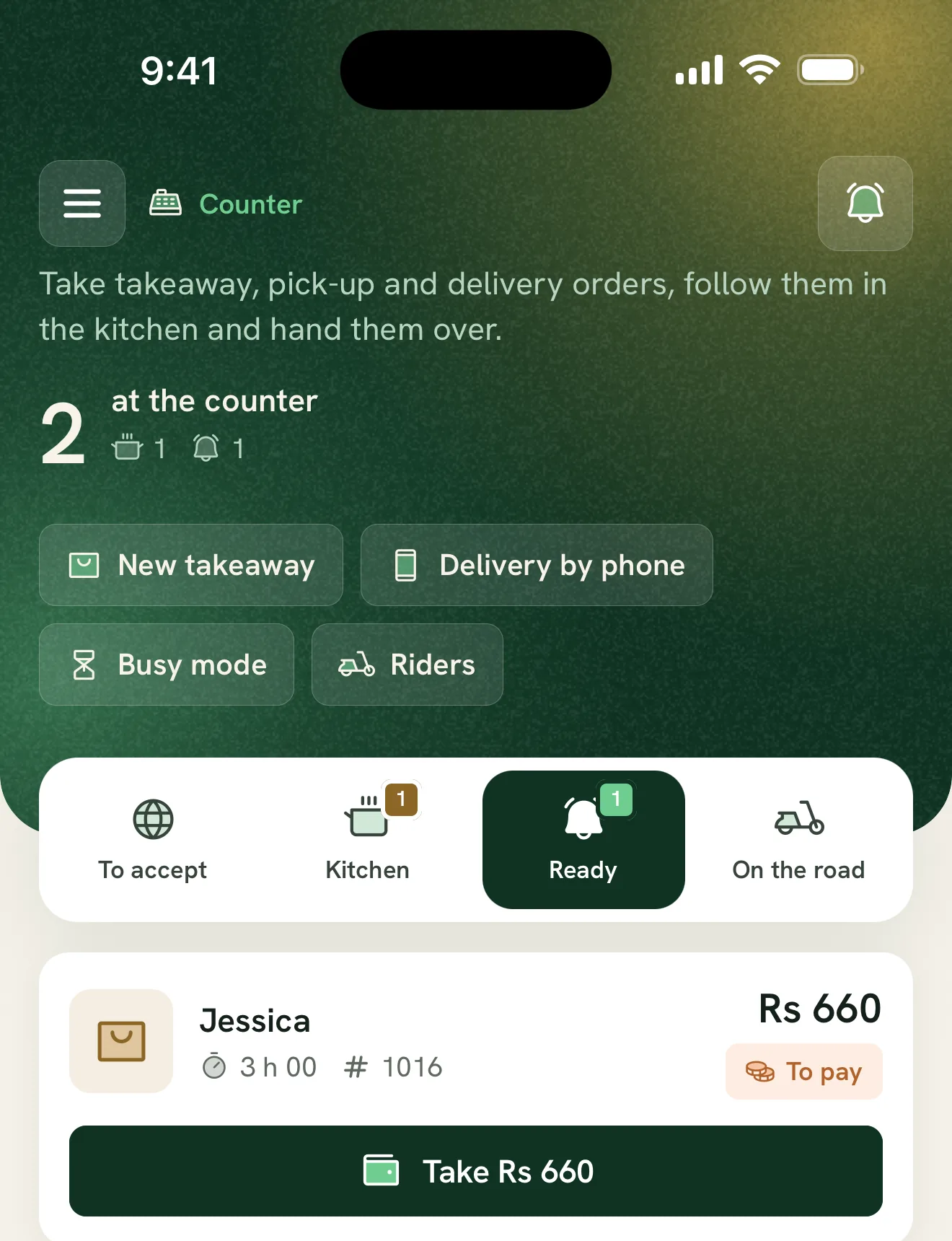
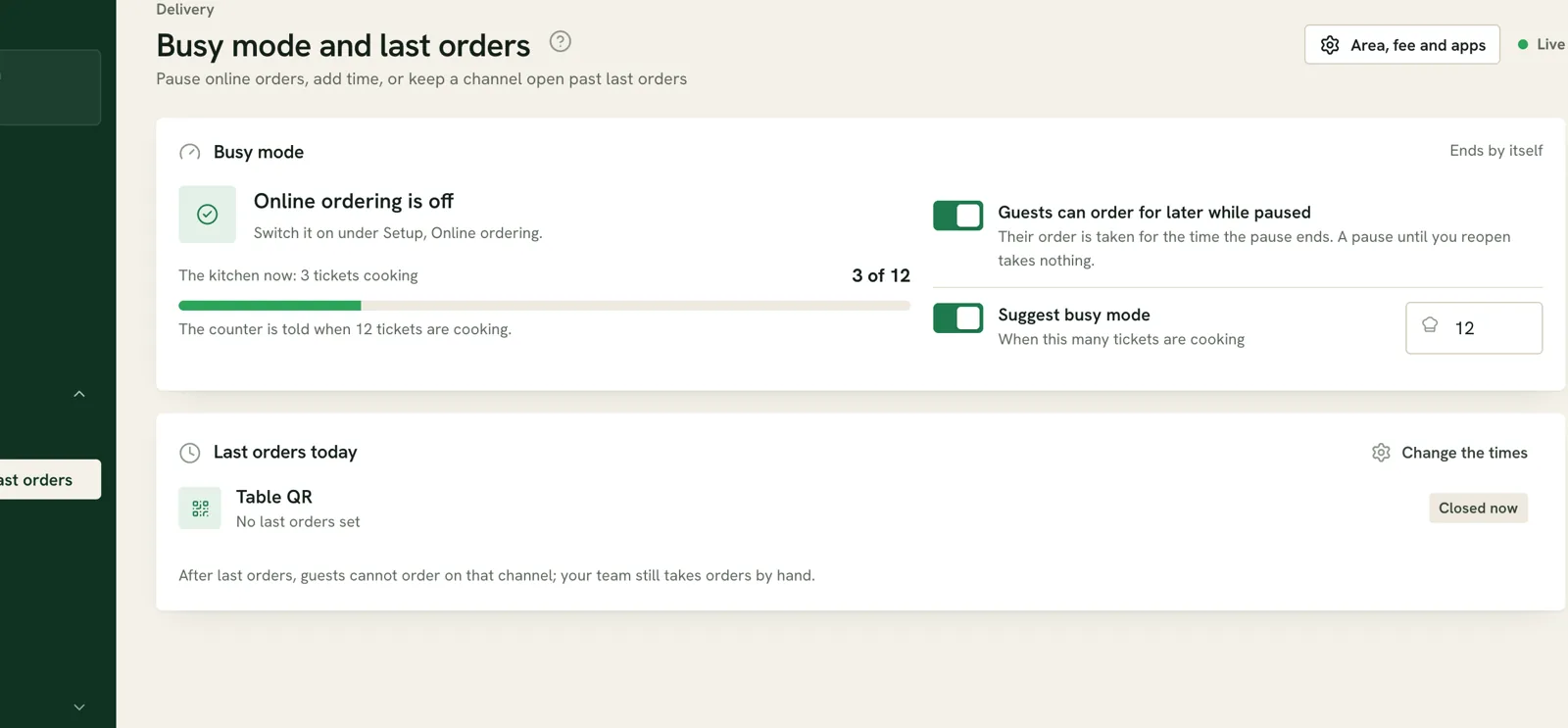
The screenshots show a demo restaurant at different moments. The names, ticket counts, amounts and area on them are examples of the interface, not customer results or a recommended operating target. Configure your own delivery area, menu, people and payment rules before accepting live orders.
| Stage | Person who checks | Record or screen |
|---|---|---|
| Before service | Owner or manager | Delivery area, online hours, menu and rider roles |
| New order | Counter lead | To accept lane and order reference |
| Preparation | Kitchen team | Ticket, dish details and ready state |
| Dispatch | Counter lead and rider | Rider assignment and On the road lane |
| After the drop | Rider and manager | Delivery status, money held and hand-in |
What restaurant delivery management must cover
An online menu by itself is only the start. The restaurant needs a rule for which addresses it serves, a way to stop orders when the kitchen is full, a person who accepts each new request, a kitchen ticket, and a named rider for the handover. The manager then needs to know which deliveries are still out and whether cash from completed drops has come back. Keep one order reference through every step so a telephone enquiry can be answered without guessing.
If you already use the restaurant POS for tables and takeaway, keep delivery in the same operating routine. The order tracking guide explains how to find the reference in Orders and distinguish open bills from paid sales. Here the focus is the additional delivery decisions: coverage, acceptance, rider dispatch and settlement. A delivery marketplace may bring a different workflow; verify exactly which channel a given order entered before assigning it.
Configure the delivery service before opening it
- Set where riders go. Open Setup and Delivery. Review the delivery area shown for your restaurant and test an address near the edge of that area. Agree with staff which locations you actually serve. Check the displayed charge in your own setup rather than assuming one rule applies to every restaurant.
- Review the menu and hours. In Menu, check which dishes are available for the online channel, their options and sold-out state. In Setup, check online ordering and the last-order rule. The public page should not promise a dish or a delivery window your kitchen cannot support.
- Add the people who will carry orders. In Team, People, assign the Delivery rider role to each rider. A counter colleague needs the relevant dispatch access. Confirm who may change settings and who is responsible for the cash hand-in.
- Run one controlled order. Place a test through the restaurant page for an address you can serve, accept it at the counter, follow the kitchen ticket, assign a rider and inspect the completed order. Use your own procedure for test payments and records.
The setup sequence matters because an accepted order is a commitment to a guest. A map that looks right at a glance can still include a place your rider cannot reach in the time offered. A menu item can be visible online while its kitchen station or option is wrong. Ask the counter and kitchen teams to confirm their own screens, not just the office preview. For the wider room, menu and staff configuration, follow the POS setup tutorial.
Accept a delivery order and follow it into the kitchen
The counter app groups work into To accept, Kitchen, Ready and On the road. The first lane is where a new online request needs a person to act. Open the card, confirm the order reference, delivery address and requested items, then accept or decline according to the restaurant’s rules. Do not treat an unaccepted request as a kitchen instruction. For a telephone request, the counter can enter Delivery by phone, which puts the order into the same working view.
Once accepted, the kitchen needs the right dish, options and destination. Follow the reference in the Kitchen lane, then check the kitchen display rather than assuming the counter badge tells the whole story. The kitchen marks the food ready; a counter colleague still has to identify and hand over the correct bag. The kitchen display guide includes a ticket and ready-message test. That page is also useful if a delivery appears to have stopped between acceptance and preparation.
Make the handover physical and explicit. Read the order reference from the bag and the counter card, confirm the address with the rider and check whether payment is already recorded or must be collected. If an item is missing or a guest changes the address, resolve it on the order before sending someone out. A status alone does not prove that the bag contains the right dishes.
Dispatch to a rider and track what is still out
When the order is ready for dispatch, use Send with a rider on its counter card. Select a person from the rider list. The card then moves into the On the road work, and the named rider can be seen on the delivery. If the first assignment changes, use Change rider and confirm the new person has actually collected the bag. Do not mark a drop complete at the counter simply because a rider has left the building.
The office Delivery area has Riders live for an overview of where riders are, their deliveries and the cash they hold. Check the time of a location update before treating a map point as current; a stale phone signal is not a live position. If an order is late, open its individual record and contact the rider or guest through the restaurant’s normal process. The map should help locate the next question, not replace a human check.
At the end of the drop, check the order state and payment. A cash-on-delivery order requires a second hand-off when the rider returns the money. Compare the cash each rider holds with what is handed in, and investigate any difference by order reference. Keep card, wallet and cash collections separate in your own reconciliation. Ferculon’s back office provides the order and finance views, while the rider screen tracks deliveries and cash held.
Use busy mode and last orders to protect service
Delivery demand does not arrive evenly. In Delivery, open Busy mode and last orders before a rush, and show the counter lead how to pause online orders or add preparation time when the kitchen is behind. The same controls show last orders for each channel. Staff can review the channel state against opening hours and the orders already cooking, then make a deliberate decision instead of silently accepting work they cannot finish.
A pause does not erase orders that were already accepted. The kitchen must still finish those tickets and the counter must still dispatch them. The setting for whether guests may order for later during a pause needs a conscious choice. Check what the public ordering page actually shows after changing busy mode, since that is what a guest will rely on. Do not use a pause to hide an operational problem without telling staff who must clear the backlog.
Check the whole chain before choosing a system
- Guest to counter: place an order from your own page and ask who accepts it, what happens if nobody does, and how the guest sees the delivery option.
- Counter to kitchen: follow one reference and confirm dish options, allergens and the ready signal on the right station.
- Kitchen to rider: assign a named rider, change the assignment, and show how the team distinguishes ready food from an order already on the road.
- Rider to office: show a completed drop, the rider’s cash held and the hand-in process. Ask what the map shows when location data is old.
- Busy service: pause new orders, check the public page, and show how existing orders continue to completion.
That is a more useful buying test than a claim to be the best restaurant management system or best restaurant POS in Mauritius. Bring your own menu, an address near your delivery boundary and the team member who closes the till. Check the pricing page for a quote, then arrange a Ferculon demonstration and ask to run the complete delivery sequence.
The limits are operational. Ferculon cannot verify that a bag reached the guest unless a person records the hand-off, and a stale rider location must be checked. It does not transmit fiscal invoices to the MRA Electronic Billing System. This guide is about service workflow, not tax or legal advice; ask a qualified adviser about any obligation that applies to your restaurant.
Questions people ask
How do I set up my own riders for restaurant delivery?
Add each person with the Delivery rider role in Team, People, then check that the counter team has dispatch access. Run a controlled order and assign it from the counter before accepting live delivery orders. Confirm how cash will be handed in.
Can Ferculon take delivery orders from our own restaurant page?
Yes. Guests can place delivery orders from the restaurant’s own page. The counter accepts them, the kitchen prepares them and your own riders can deliver them. Test the delivery area, menu and ordering hours before opening the channel.
How do I track a delivery order after the kitchen is ready?
Use Send with a rider on the counter card and select the named rider. The order appears in the On the road work, while the office rider view shows deliveries and cash held. Check the order record and the time of any location update before relying on a map point.
What should I do when the kitchen is too busy for new delivery orders?
Review Busy mode and last orders in Delivery. You can pause online orders or add preparation time, then inspect what the guest page displays. Existing accepted orders still need to be prepared and handed over.
Does Ferculon transmit fiscal invoices to the MRA Electronic Billing System?
No. Ferculon does not transmit fiscal invoices to the MRA Electronic Billing System. This is an operational guide, not tax or legal advice; check your obligations with a qualified adviser.