Cloud POS for restaurants
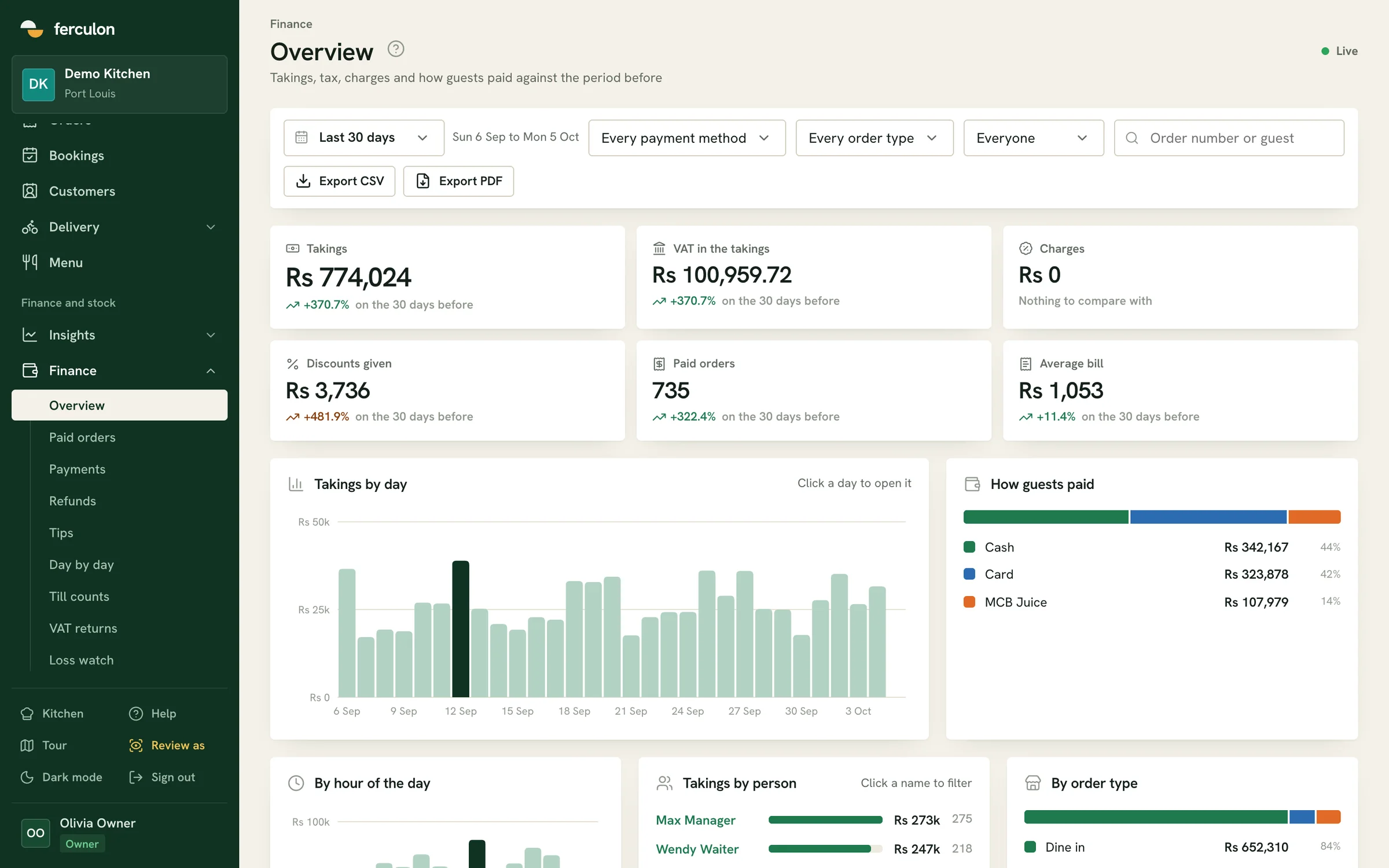
A cloud POS keeps your orders, bills and records online, so the waiter’s phone, the kitchen screen and the owner’s browser show the same information. With Ferculon, waiters take orders at the table, each order goes to the right kitchen station, and you can check the bill, the stock and the day’s takings from any browser.
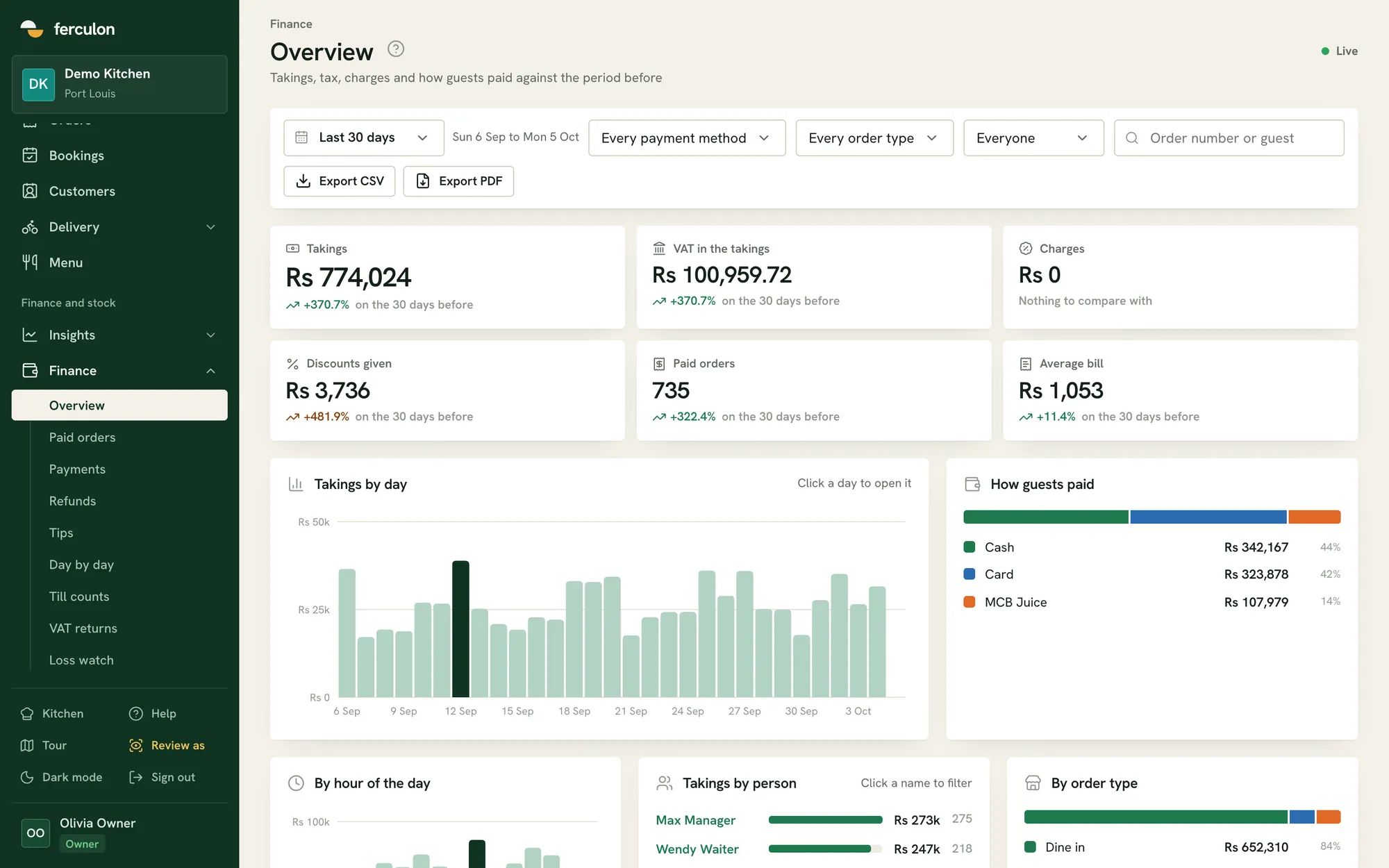
The Ferculon back office: open your restaurant’s figures in a browser.
See how your service would run
Pick the type of service you run to see how an order moves, what equipment you need and what to try first.
Table-service restaurantOrders go from the table to the kitchen and on to the bill.
- 01Seat a table
- 02Take the order
- 03Fire each course
- 04Split the bill
Equipment
Phones or tablets for waiters, a kitchen display and an optional receipt printer.
What to try first
Set up your floor plan, menu options and kitchen stations, then run one table with two courses and a split payment.
Explore table service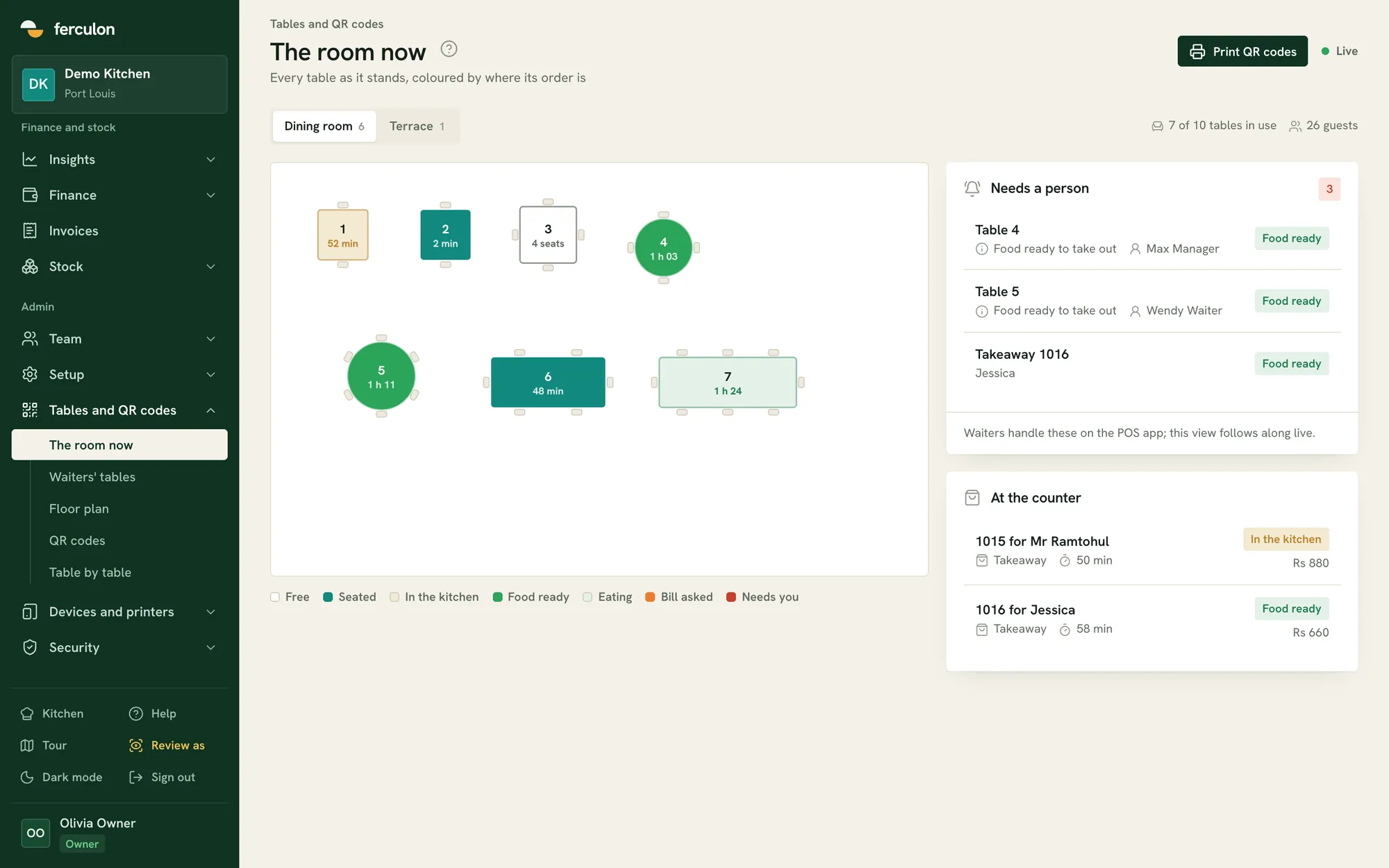
Café or counter serviceThe counter and the kitchen work from the same order.
- 01Enter an order
- 02Send to its station
- 03Mark it ready
- 04Take payment
Equipment
A counter phone or tablet and a kitchen display, with printing where your team needs it.
What to try first
Enter a typical order with extras, follow its ticket to the kitchen or the bar, then check the receipt and the takings.
Explore kitchen tickets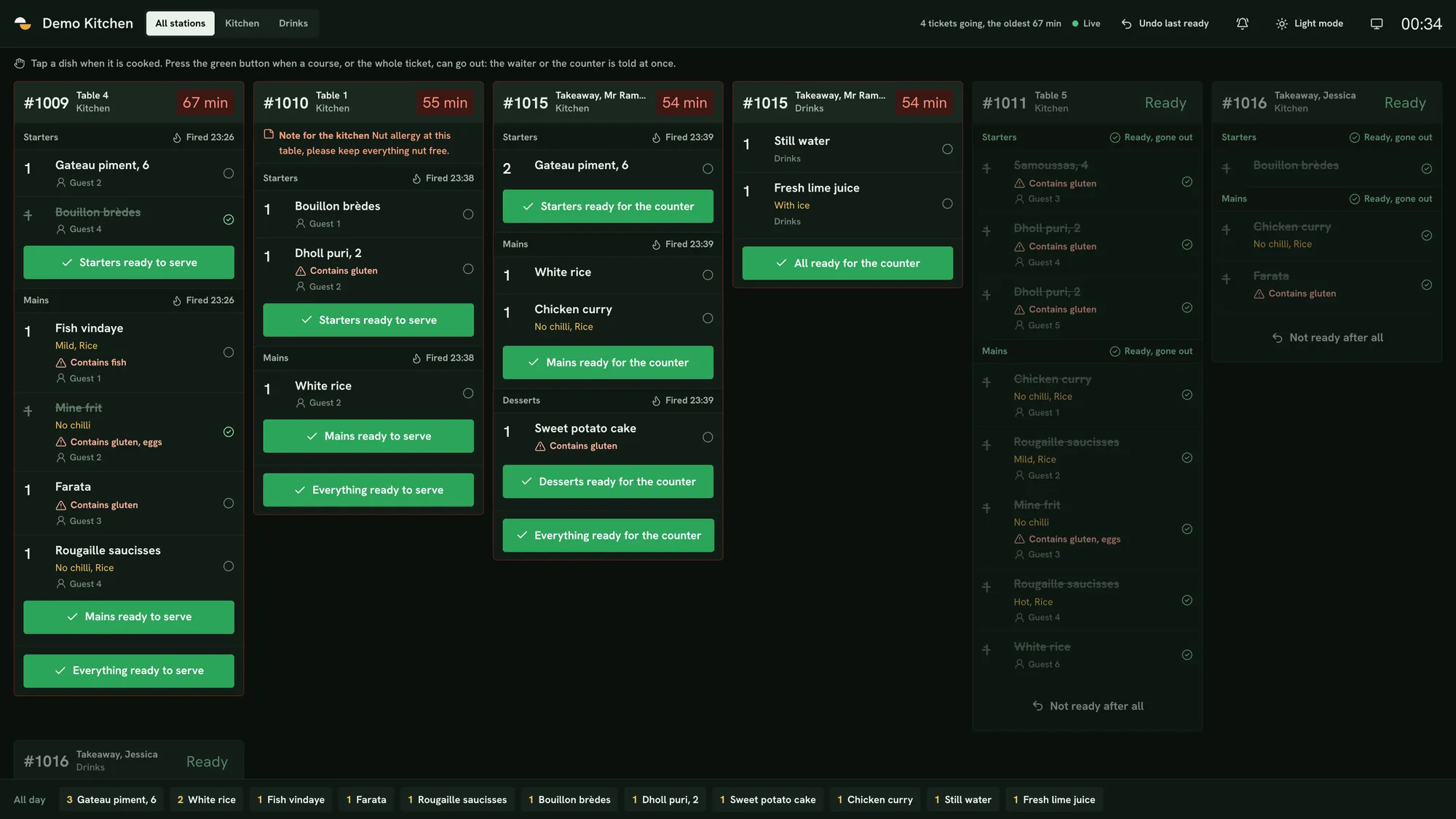
Restaurant with table QR orderingGuests order from their own phones.
- 01Scan the table QR
- 02Choose dishes
- 03Send the order
- 04Prepare and serve
Equipment
A printed QR code at each table, guests’ phones and your staff and kitchen screens.
What to try first
Set up your tables and guest menu, scan a table’s code and follow the order through the kitchen the same way as a waiter’s order.
Explore QR code ordering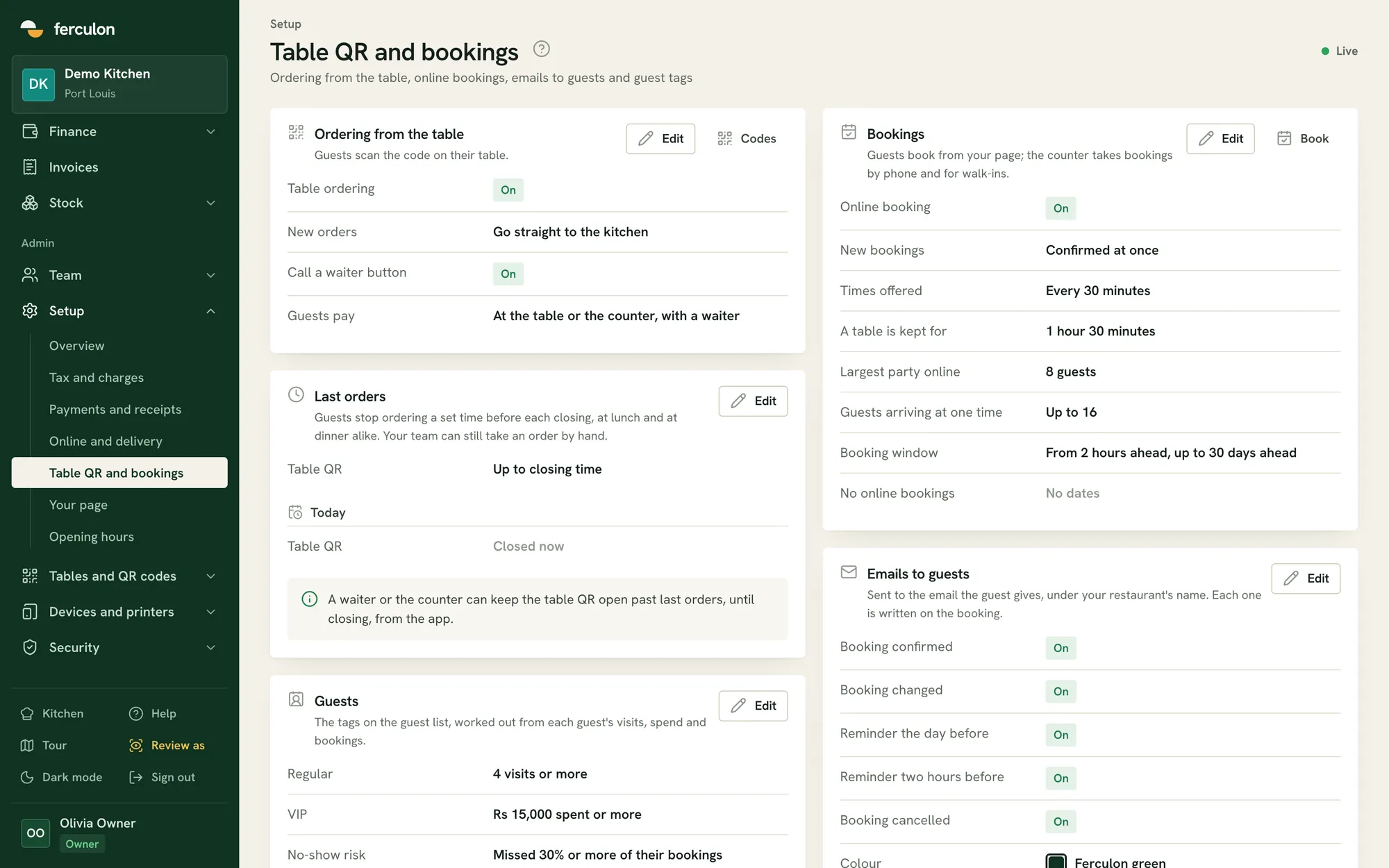
Takeaway and own-delivery operationOnline orders and rider handovers are handled in one place.
- 01Receive the order
- 02Prepare the food
- 03Hand over
- 04Follow delivery
Equipment
A kitchen screen, a counter device and the staff app for your riders.
What to try first
Set your delivery menu, area and opening hours, then place a pick-up order and a delivery and hand the delivery to a rider.
Explore online orders and delivery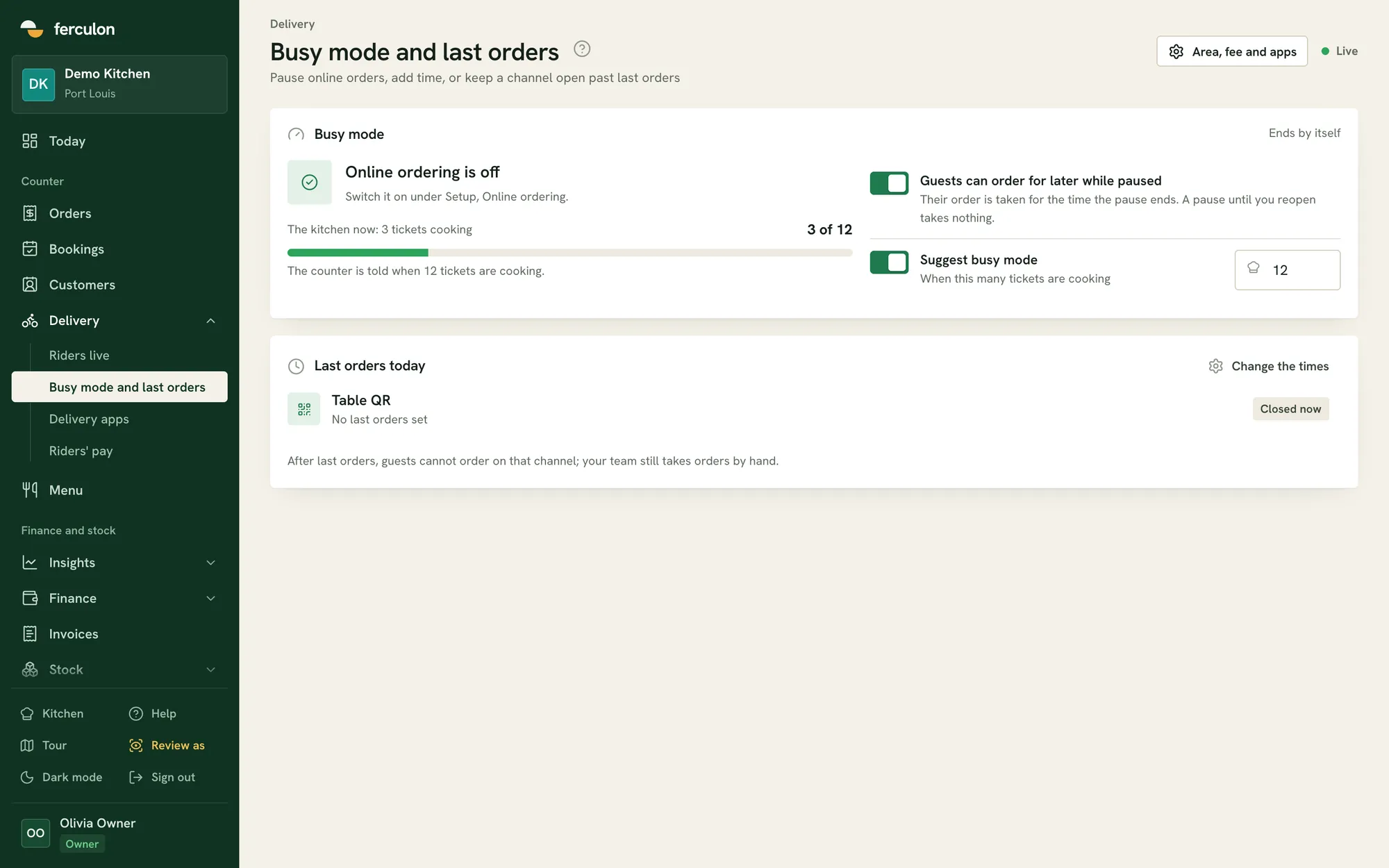
Choose the screens that suit your service
Each person gets the screens for their job and signs in with their own PIN, even on a shared tablet.
| Where | Your equipment | What the team does |
|---|---|---|
| Dining room | iPhone, iPad or Android phone or tablet | Open tables, add dishes, hold and fire courses, split bills and follow ready notifications. |
| Kitchen and bar | Screen with a browser or the staff app | Follow tickets by station and course, see allergens and mark food ready. |
| Counter | Phone or tablet, with an optional receipt printer | Handle takeaways, payments, till counts and delivery handovers. |
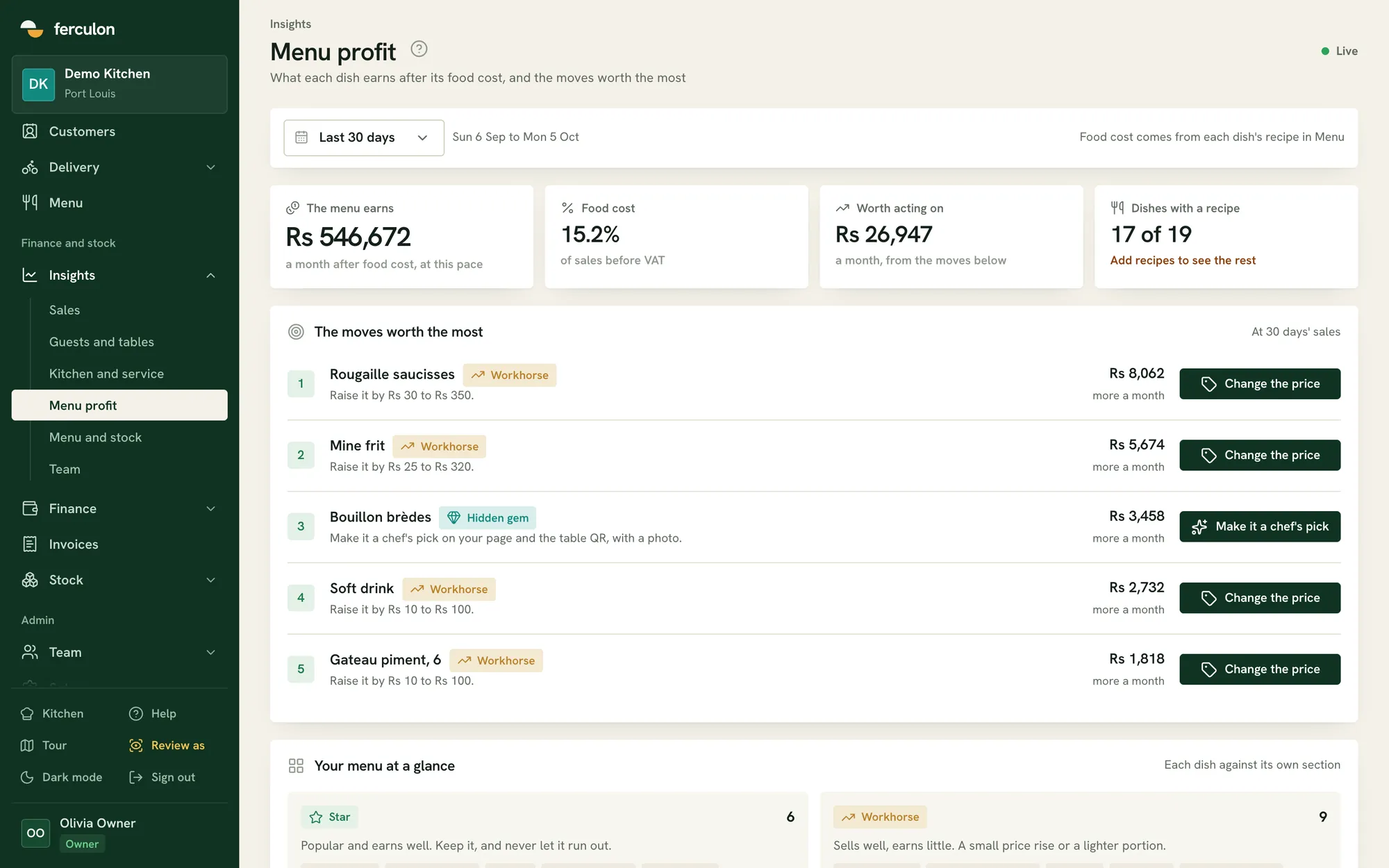
| Office | Computer or mobile browser | Review paid orders, stock, suppliers, recipes, staff hours and menu profit. |
What you learn after each service
Every service leaves records you can use the next day.
- See which dishes sell and what their recipes cost.
- Check ingredients, deliveries and recorded waste.
- Review discounts, refunds and short tills with the staff activity behind them.
- On Pro, ask Ava about sales, stock or staff for the dates you choose.
Plan your move to cloud POS
Sign up and use the free months to set up your menu and floor plan, then run a normal service with your team before you rely on it.
- 01
Build your menu and floor plan
Add dishes, modifiers and prices. Draw tables for each dining area and assign dishes to their kitchen stations.
See floor and waiter tools - 02
Connect the kitchen and counter
Pair staff devices, open the kitchen display and set up printers. Run a sample order through the kitchen, split its bill and check the receipt.
See the kitchen display - 03
Add your ordering channels
Print table QR codes, configure bookings and prepare your pick-up or delivery menu. Guests order through your restaurant page.
Explore QR ordering - 04
Connect service to your figures
Add ingredients, suppliers and recipes. Review sales, food cost, wastage and payment records in the back office as your team uses the system.
Explore stock and reports
For the complete feature set, explore Ferculon restaurant management software. For restaurants in Mauritius, the Mauritius POS page covers the local workflow.
Cloud POS questions
What is a cloud POS for restaurants?
A cloud POS connects orders, bills and restaurant records through an online system. With Ferculon, waiters use the app on phones or tablets, kitchen staff follow live tickets, and owners open the back office in a web browser.
What hardware do I need?
Use iPhone, iPad or Android devices for staff, and a browser screen for the kitchen display and back office. For printed tickets or receipts, use a compatible Wi-Fi or Bluetooth printer. A cash drawer connects through the receipt printer.
Can I manage the restaurant away from the counter?
Yes. Owners and managers can open the back office in a browser to review sales, payments, menu profit, stock and staff activity. Roles control the screens and actions each person can access.
Can I keep table orders, takeaways and delivery together?
Yes. Table service, table QR orders, counter orders, pick-up and delivery share the same restaurant account. Kitchen tickets and back-office reports include those orders, and delivery staff use their own rider screens.
How does Ferculon help when the connection drops?
Screens retain their last view of orders, tables and kitchen tickets, and staff can clock in and out with their PIN. The system syncs when the connection returns.
How do I move my menu into Ferculon?
Set up menu sections, dishes, prices, options and kitchen stations during onboarding. On the Pro plan, AI menu import reads a menu photo, PDF or Word file into dishes for you to review. Add recipes and ingredients to connect menu sales with food costs.
How much does cloud POS cost?
Ferculon Starter is $69 a month for each restaurant. Standard is $149 and adds online orders, delivery, stock and payroll, Pro is $299 and adds Ava and the AI features, and Max is $399, with twice Pro's WhatsApp messages. Your first 3 months are free.
What is the difference between a cloud POS and a traditional POS?
A traditional POS keeps its software and records on a terminal or server in the restaurant. A cloud POS keeps them online, so staff phones, the kitchen screen and the back office read the same records from anywhere with a connection, and updates arrive without a visit from an engineer.